Circle to Search for Windows and Linux. Free and open source.
Circle anything on your screen to search it, read it, translate it in place,
or ask an AI about it. Fast, private and light.
OpenCircle is one small native program for Windows and Linux that puts search, text reading, in-place translation and AI questions behind one shortcut. It never uploads your screen on its own: search and AI Mode open in your own browser, only when you choose them, and translation runs on your PC by default. It is free, MIT licensed, and has no account and no telemetry.


Real recordings of the default v0.1.1 features on Windows. These clips show the released app, with Labs features off. v0.1.1 release notes.
Full-size MP4 videos and feature guides: gallery.
- Translate in place. Press
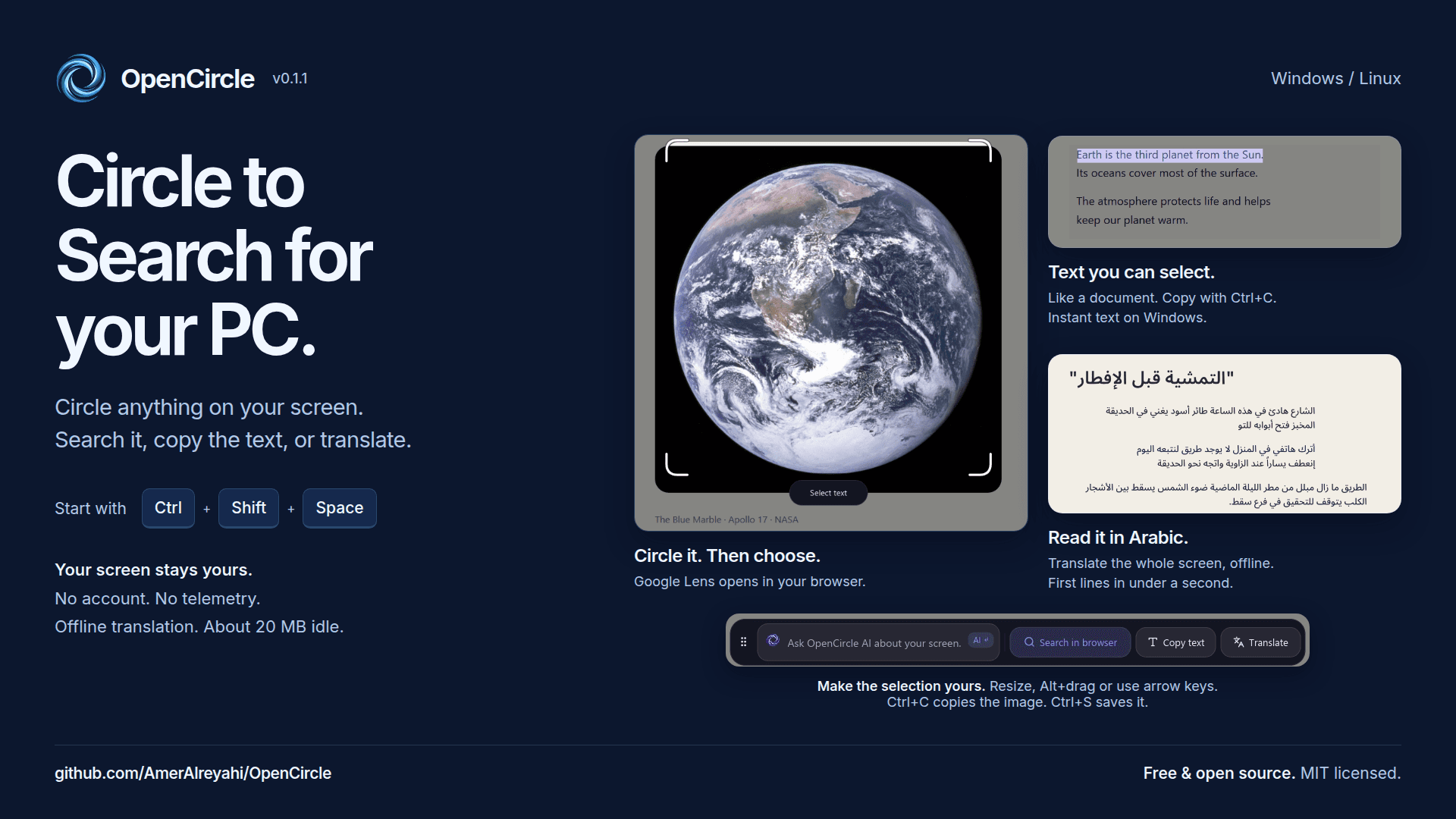

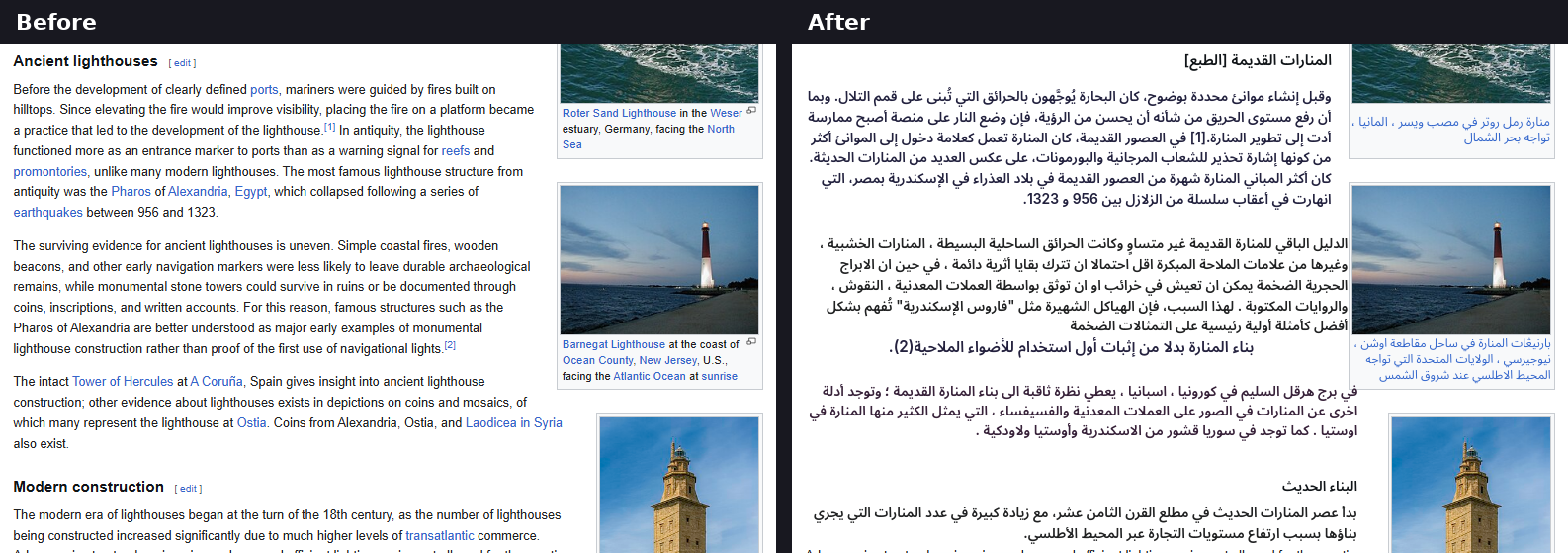
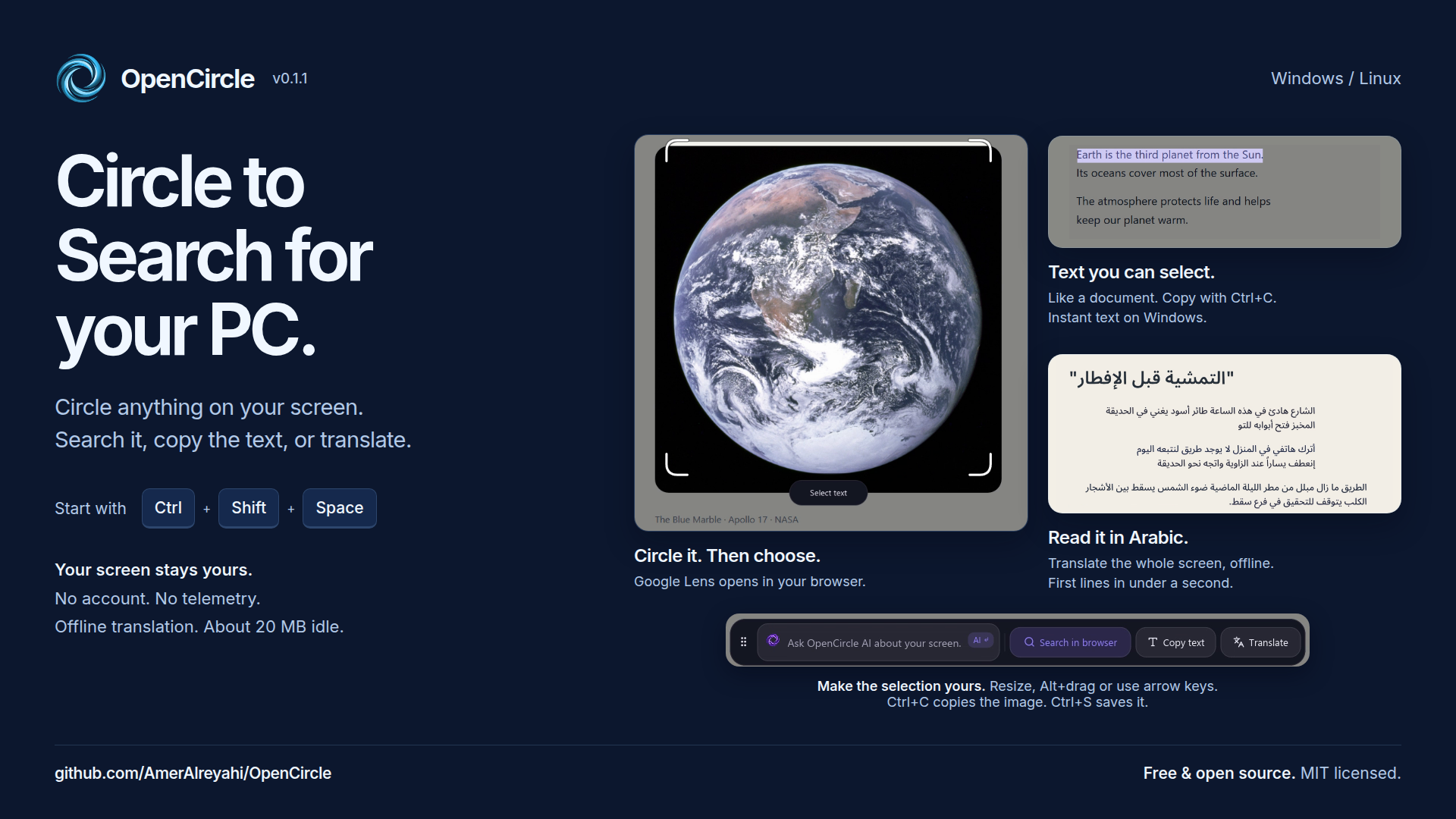
Ctrl+Shift+Tto translate the whole screen. The original text is erased and the translation is drawn in its place, with matching colour and size. This translates one captured screen; run it again after the page changes. Runs offline by default after a one-time model download. Arabic is the default target. - Circle, then choose. Press


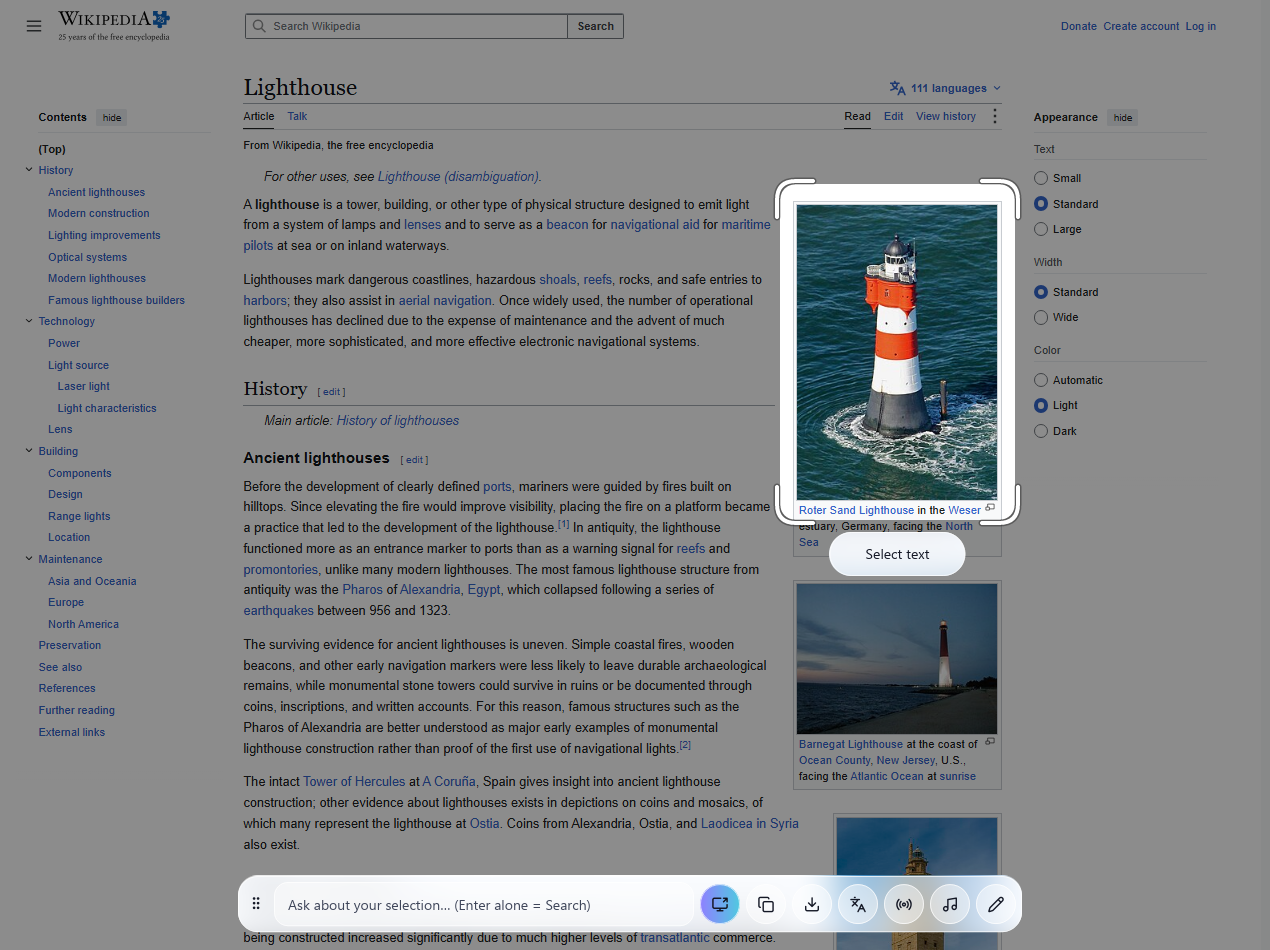
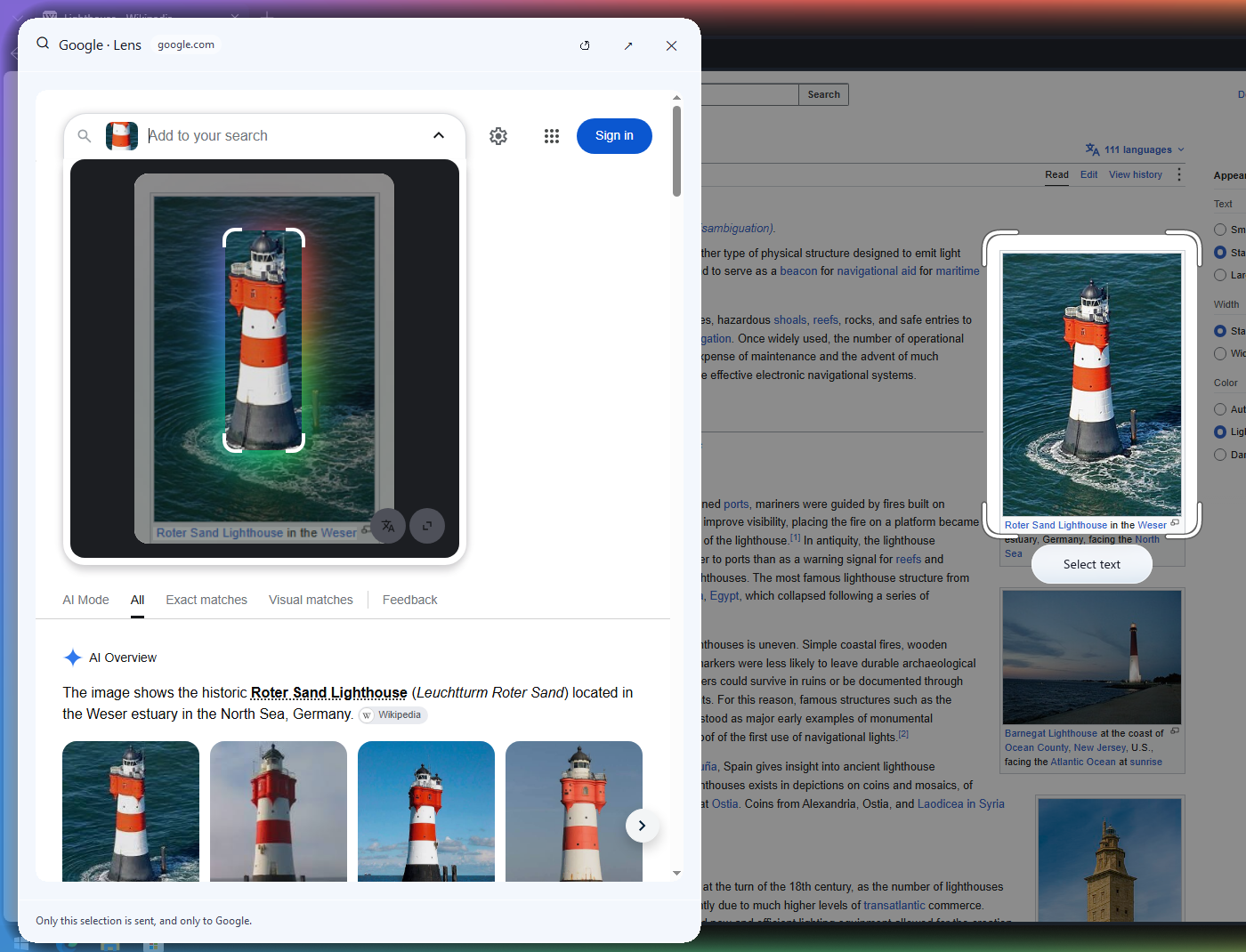
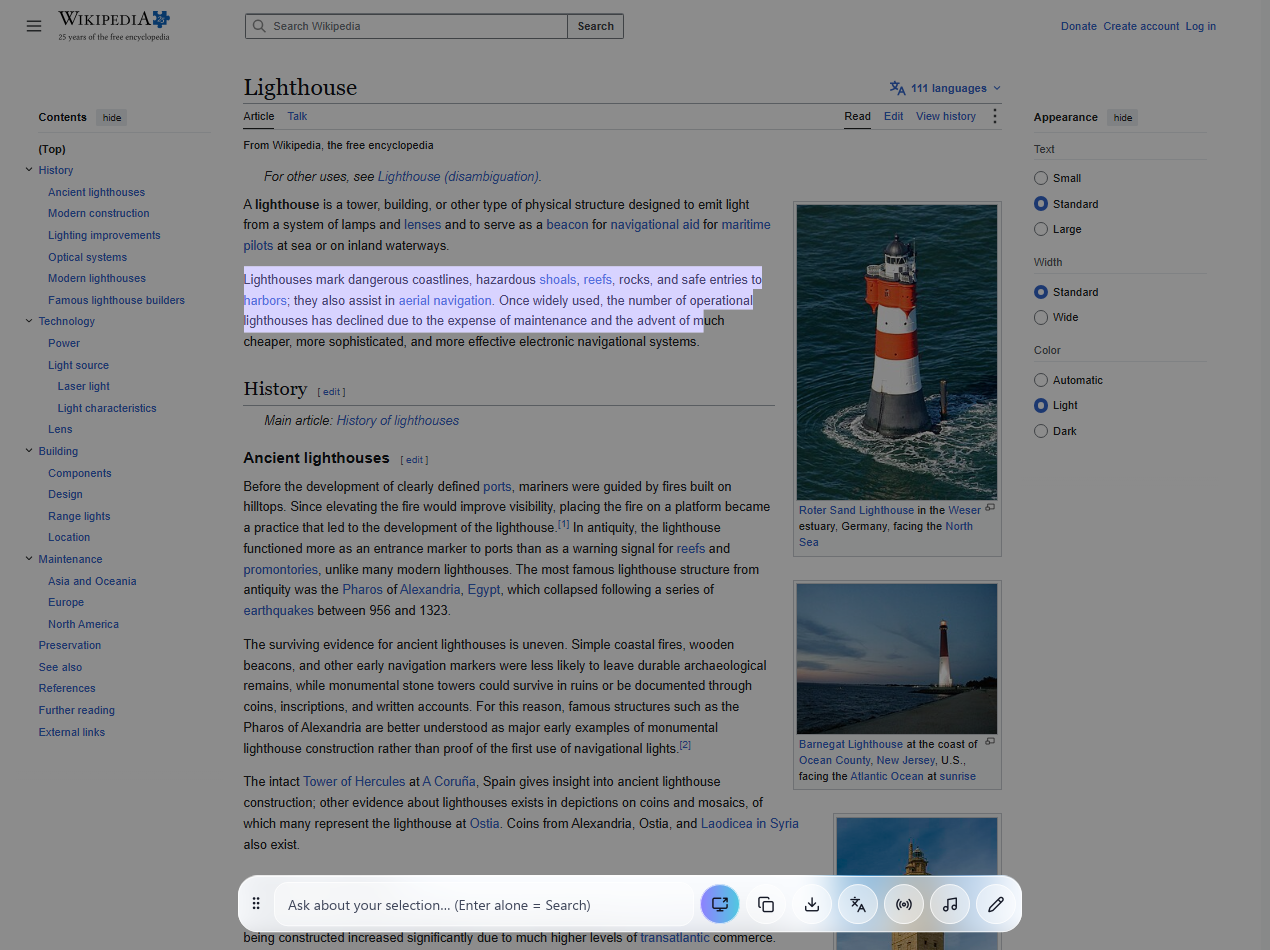
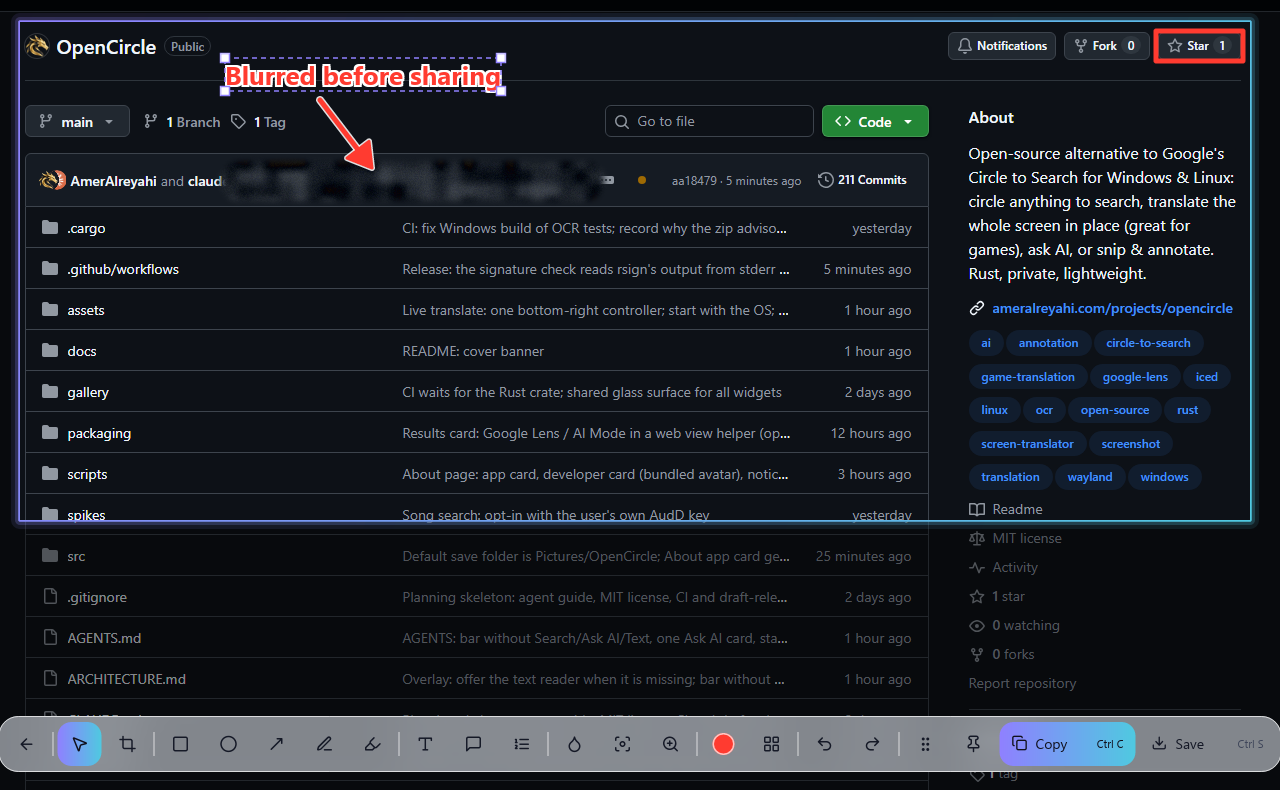
Ctrl+Shift+Space, draw a circle or a box around anything, then pick what to do: Search in browser (the picture goes to Google Lens, selected text to a Google search), Copy text, Translate, or ask AI. Nothing is sent until you pick. The stroke snaps to a clean box that you can move, resize by its edges, or nudge with the arrow keys (Alt+drag moves it even over text). It opens on the screen of your active window, so it works with several monitors. - Select text like on a desktop. Drag over words to copy them, translate them, or search them. On Windows the text is readable at once with Windows' own text recognition; otherwise (and for Arabic or games) OpenCircle offers a one-time download of about 30 MB. Settings > Look & behaviour > Text reader chooses.
- One bottom bar. Ask OpenCircle AI about your screen, then Search in
browser, Copy text, and Translate; Live translate, Music and Edit appear
once you turn them on in Settings > Labs.
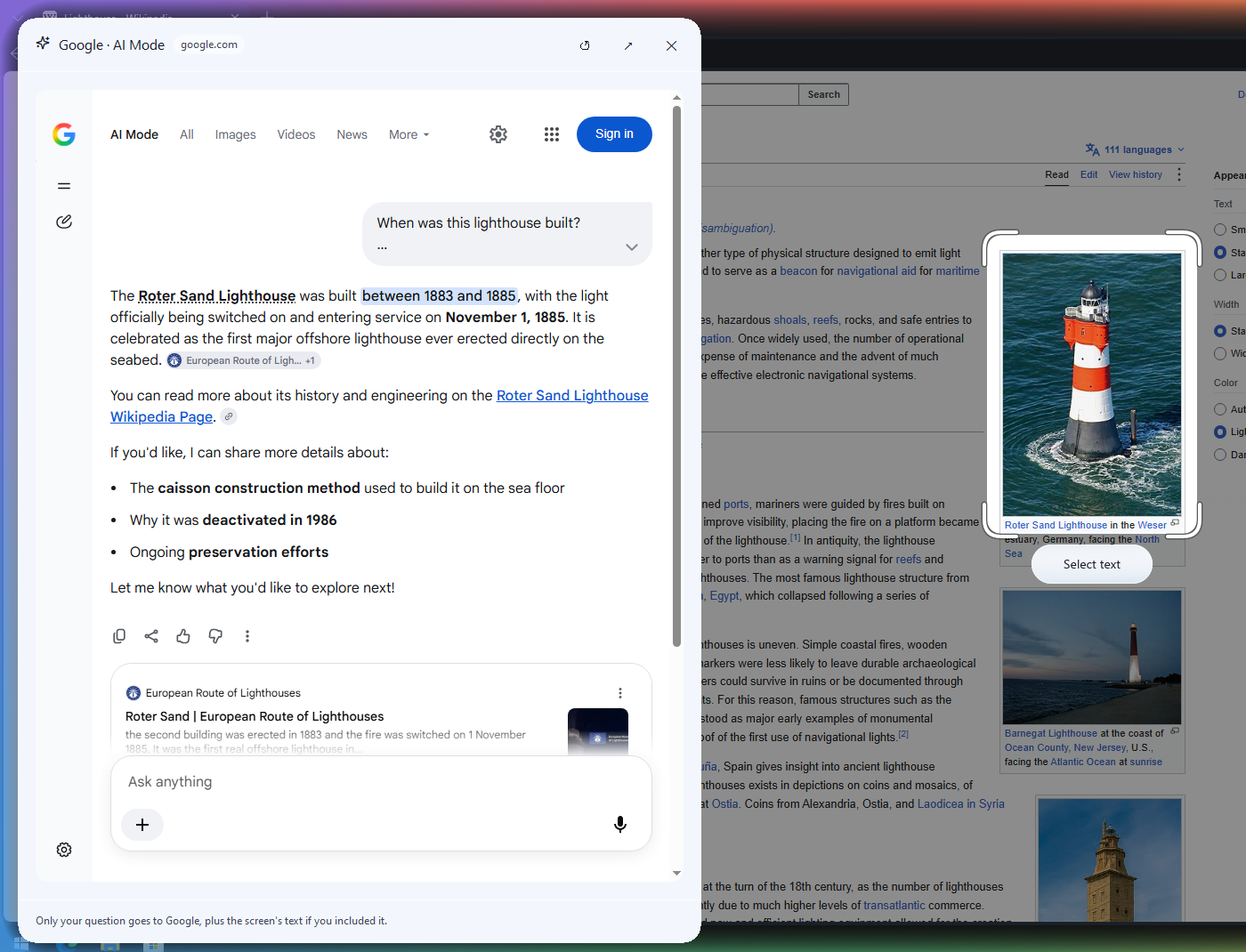
Ctrl+Ccopies the selection as an image (or the picked words as text),Ctrl+Ssaves it; a small pill confirms. Drag the bar to any edge. - Ask AI about your selection. No key needed: the question opens in Google AI Mode in your browser. Or add your own key for answers inside OpenCircle: Claude, OpenAI, or any OpenAI-compatible server, including a local model.
- Shortcuts for everything. Give any action its own key and skip the bar.
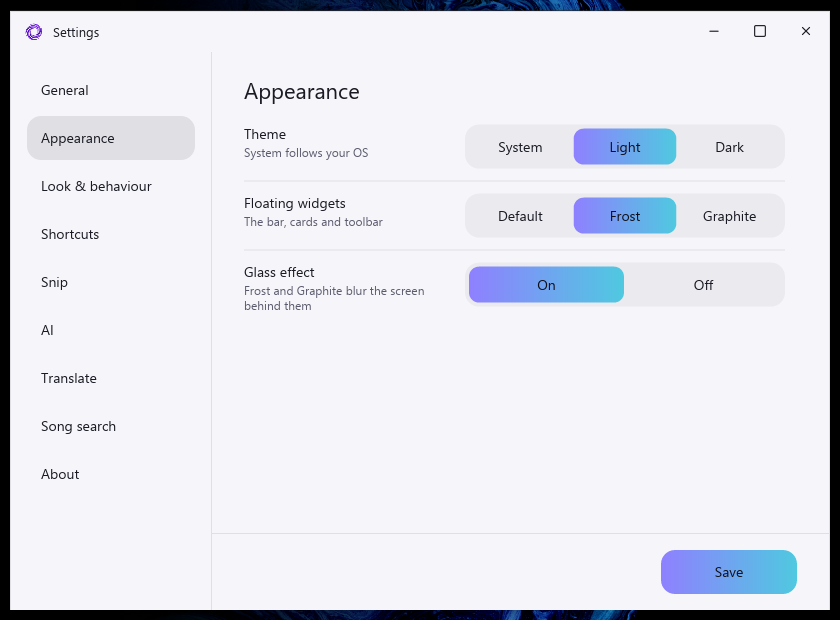
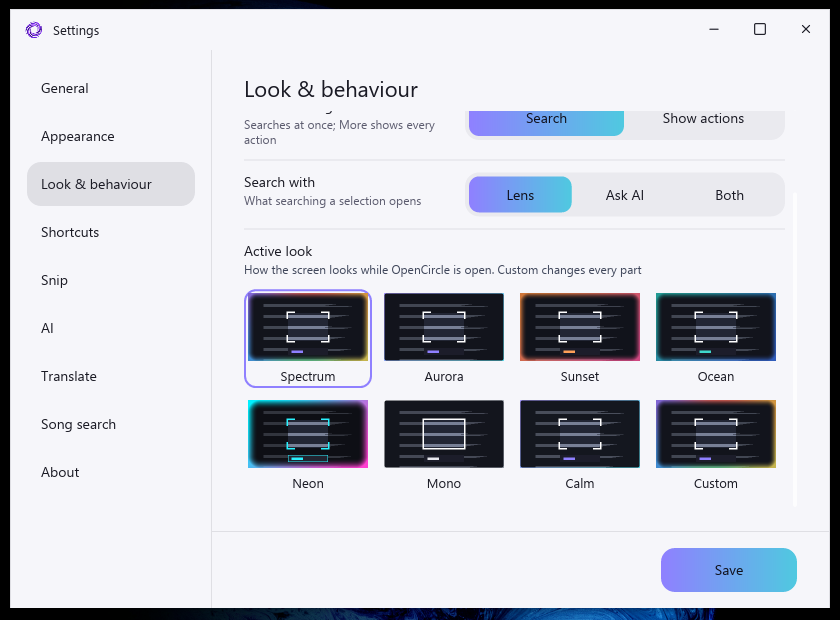
- Themes. Light, dark or system colours, and seven looks for the screen while OpenCircle is active.
- Updates that check a signature. Quiet, opt-in on first run, with release notes after each update.
Snip, the image editor, song search, search history, pins and live translate are unfinished, off by default and hidden until enabled in Settings > Labs. They are not part of the default v0.1.1 gallery above. Live translate is planned for v0.3.0.
- Nothing leaves your computer unless you choose an action.
- No account, no telemetry, no image-hosting service.
- A small log stays on your PC (
logs/in your local data folder) to help fix problems; nothing is sent. Settings > About has Copy diagnostics and Report a problem. - AI and song-search keys live in your system's keyring, never in a file.
- Search and AI Mode open in your own browser, only when you press them. The picture goes from your browser to Lens; OpenCircle uploads it nowhere else.
Details: Privacy.
- Private by default. No image-hosting service sits in between, nothing is sent automatically, and translation and text reading can run fully offline.
- One flow. Search, read, translate and ask AI come from the same selection and the same bar, instead of separate tools.
- Windows and Linux (preview) with one native binary and no browser engine inside.
- Honest limits. Search in browser and AI Mode are Google's services, opened in your browser, so they need the web and follow Google's own policies. Linux is a preview, and some features are Labs (unfinished).
Download from the Releases page.
| System | Files |
|---|---|

| Windows 10 / 11 | OpenCircle-Setup-<version>-x64.exe (the setup: one click, or pick the folder; for IT: OpenCircle-Setup-<version>-x64.exe /quiet /dir="C:\Apps\OpenCircle", uninstall with /uninstall /quiet), OpenCircle-<version>-x64-portable.exe (no install) |
| Linux (preview) | .AppImage, .deb, .rpm |
On Linux, one command downloads the latest AppImage, checks its signature, installs it
to ~/.local/bin (no sudo), adds the app-menu entry and starts it:
curl -fsSL https://raw.githubusercontent.com/AmerAlreyahi/OpenCircle/main/scripts/install.sh | shRemove it again with ... | sh -s -- --uninstall. Read the script first if you like:
scripts/install.sh.
Check a download with SHA256SUMS.txt from the same release:
sha256sum -c SHA256SUMS.txt --ignore-missingWindows SmartScreen may say "Windows protected your PC" because the installers are not code-signed (the project is free). Click More info, then Run anyway. See Signing to sign your own build.
OpenCircle starts with Windows by default (tray only, no window). Turn that off in Settings.
The Getting started guide walks through the first run.
We have applied to SignPath Foundation for free code signing (code signing by SignPath.io, certificate by SignPath Foundation). Until it is approved, the installers are unsigned and SmartScreen may warn.
- Committers and reviewers: AmerAlreyahi
- Approvers: AmerAlreyahi
Every release is built by GitHub Actions from a tagged commit in this repository, and each one is approved by hand before it is published.
Privacy: this program will not transfer any information to other networked systems unless specifically requested by the user or the person installing or operating it. See the Privacy page.
| Action | Shortcut |
|---|---|
| Circle to search | Ctrl+Shift+Space |
| Translate the whole screen | Ctrl+Shift+T |
| Live translate on / off (Labs, unfinished) | Ctrl+Shift+L |
| Circle, then explain with AI | Ctrl+Shift+E |
| Circle, then copy its text | Ctrl+Shift+X |
| Snip a region / a window / the full screen (with Labs > Snip on) | Print Screen / Alt+Print Screen / Ctrl+Print Screen |
All of them change in Settings. Full list and details: Shortcuts.
- Windows 10 and 11: the full feature set.
- Linux (preview): X11 and Wayland. On Wayland the desktop owns the keys and the screen capture; live translate runs once per press, and window and scrolling snips are not offered. See Linux notes.
Games must run in borderless or windowed mode for live translate (Labs, unfinished). Linux text reading is slower than Windows OCR; on Wayland the overlay can take about half a second to appear and popups are square. AI-provider translation can be slower than the offline engine and may show the whole result at once.
One native program written in Rust, with no browser engine inside. The interface is drawn by iced. The goal is under 40 MB of RAM while idle. Reading text, translating and Lens start short helper processes that exit when they finish.
Requires a recent stable Rust toolchain.
cargo build --releaseLinux build dependencies (Debian/Ubuntu):
sudo apt-get install libxkbcommon-dev libwayland-dev libxcb1-dev libxrandr-dev libdbus-1-dev libpipewire-0.3-dev libgtk-3-dev libxdo-devARCHITECTURE.md describes how the code is organised.
Getting started · Shortcuts · Translate · Snip and annotate (Labs) · AI setup · Song search (Labs) · Privacy · Linux notes · Signing
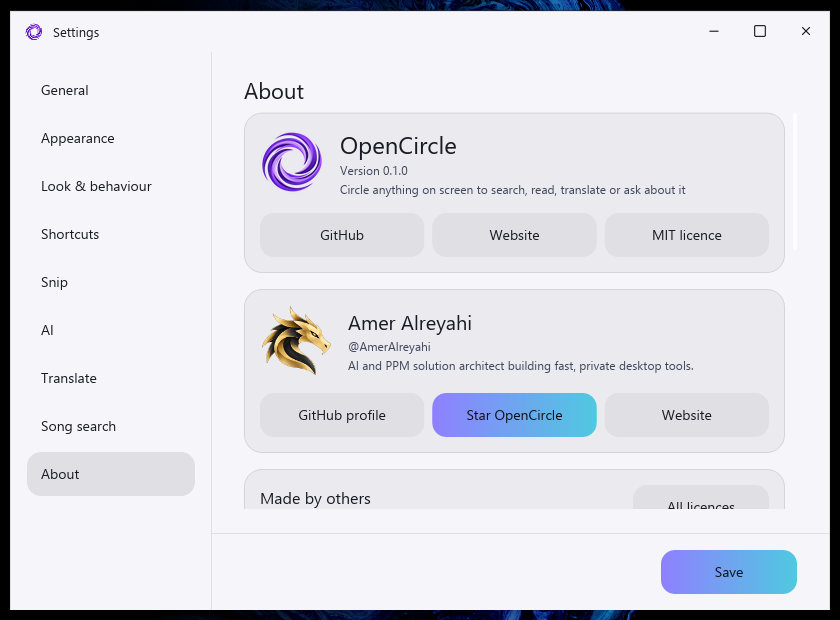
Settings > About lists the project, the licence, and every component OpenCircle
uses that is made by others, with its licence. Text-reading and translation
models are downloaded on first use under their own licences; see NOTICE.
Issues and pull requests are welcome. Run the checks before sending one:
cargo fmt --check && cargo clippy --all-targets -- -D warnings && cargo testOpenCircle is an independent project and is not affiliated with or endorsed by Google. "Google", "Google Lens" and "Circle to Search" are trademarks of Google LLC, used here only to describe the feature OpenCircle is an alternative to and the services it can open for you.